Install guide
About fifteen minutes, once. You prepare Resolve and Claude (steps 1 to 6), then Claude installs the rest with you (step 7). The screenshots come from a Mac with Resolve in French; on Windows and in English the menus sit in the same places, with the names given below.
Step 1
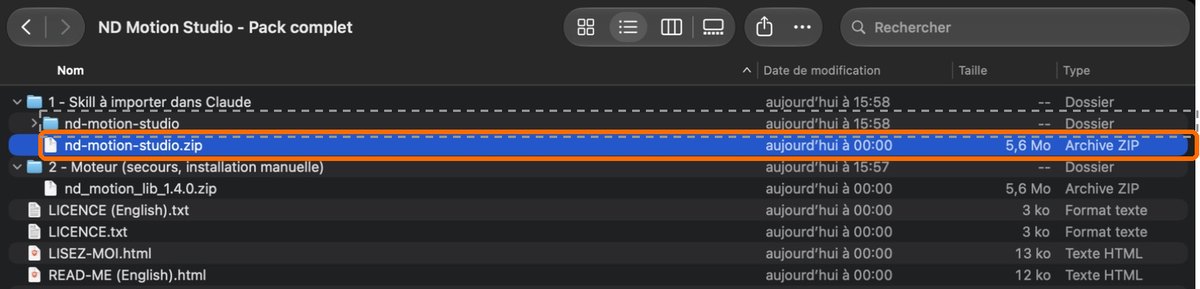
Mac: double-click the ND-Motion-Studio_….zip file. Windows: right-click it, then Extract All…. You get the “ND Motion Studio - …” folder.
The file to import into Claude is nd-motion-studio.zip, in “1 - Skill à importer dans Claude”. Don't unzip it. If an nd-motion-studio folder appeared next to it (an accidental double-click), ignore it: it's the .zip that gets imported.
Step 2
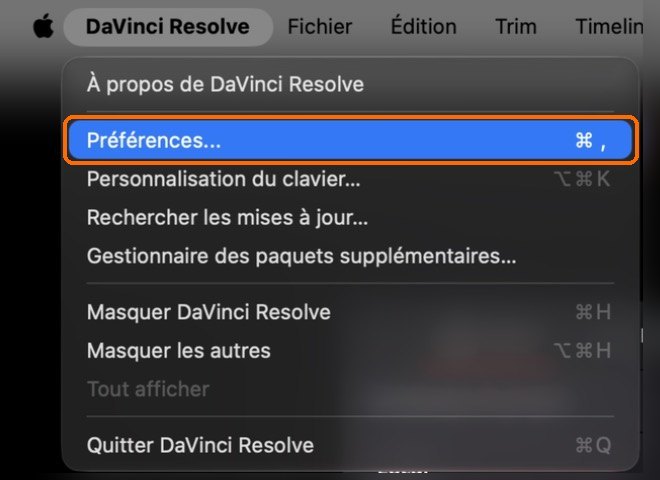
Menu DaVinci Resolve › Preferences… (Mac: ⌘ , ; Windows: Ctrl ,).
Step 3
System tab at the top, General on the left. On the External scripting using line (French UI: Écriture de scripts externe sur), choose Local, then click Save.
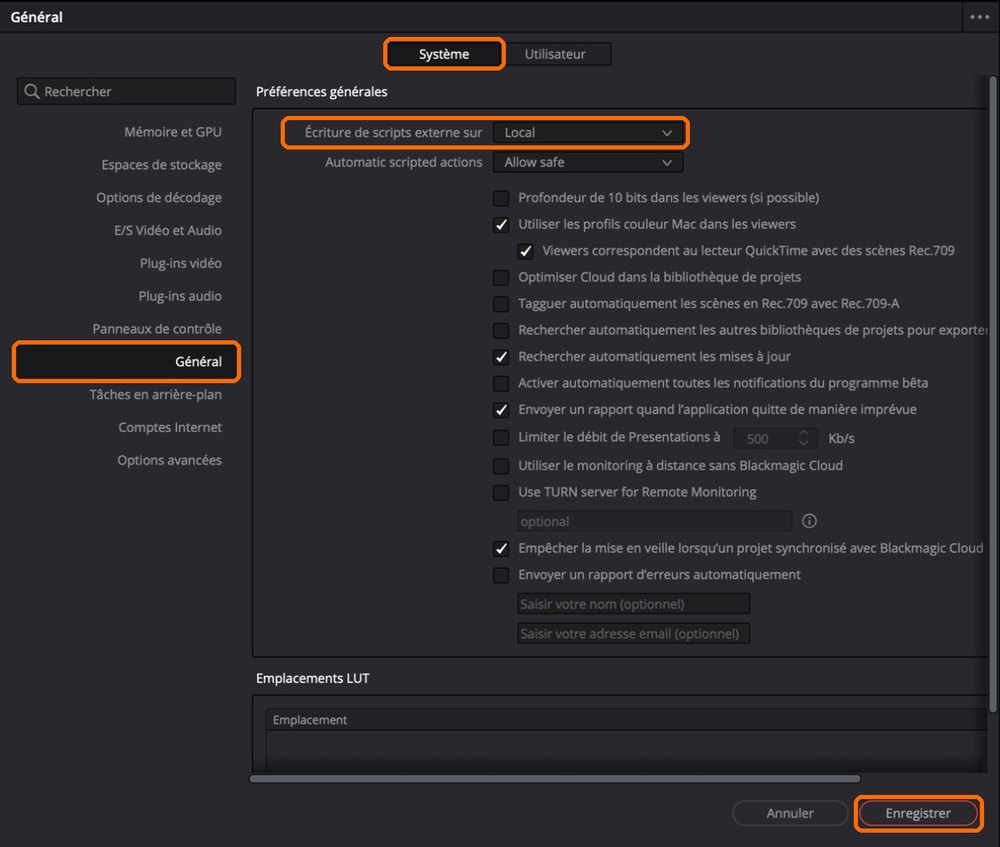
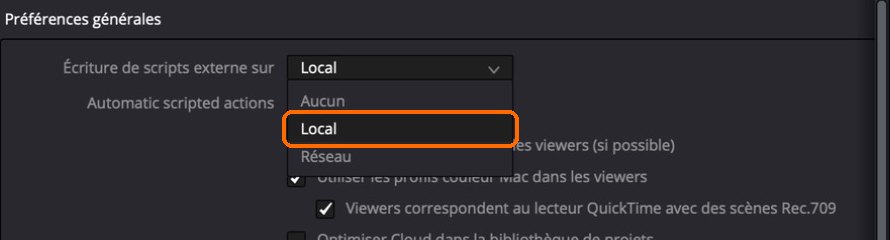
Restart Resolve (DaVinci Resolve › Quit, then reopen it): the setting is only read at startup.
Step 4
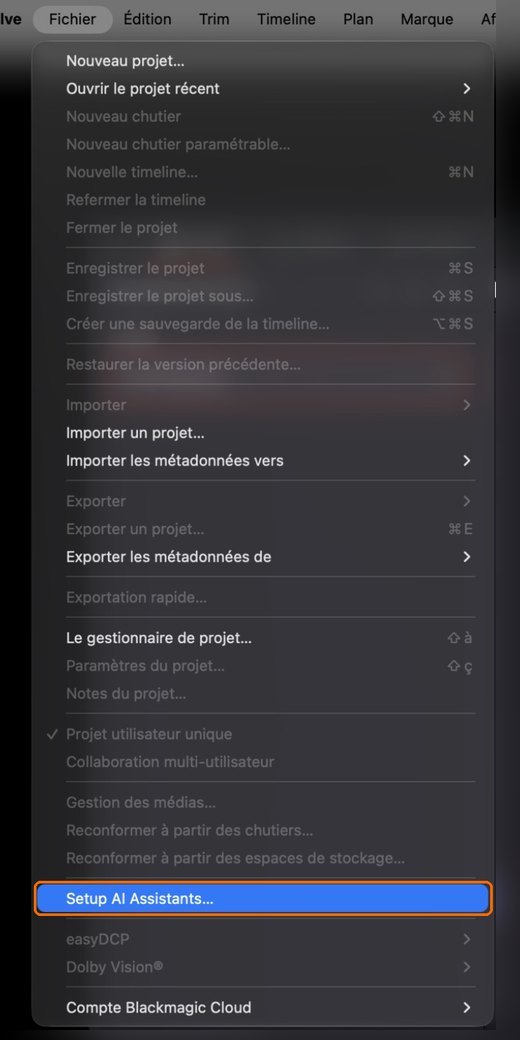
In Resolve: File › Setup AI Assistants…. Resolve registers its connector with the assistants installed on the computer and opens the Claude app.
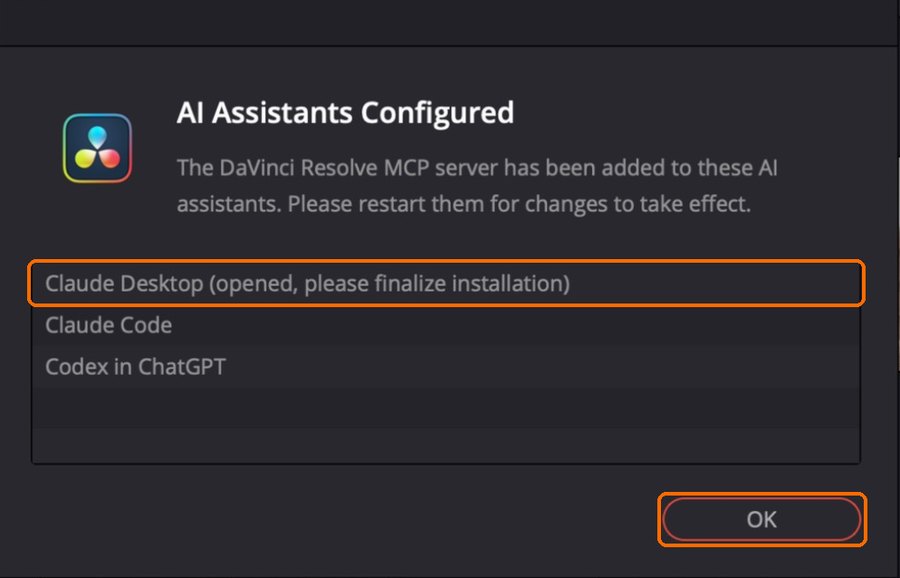
Resolve confirms: “AI Assistants Configured”. Click OK.
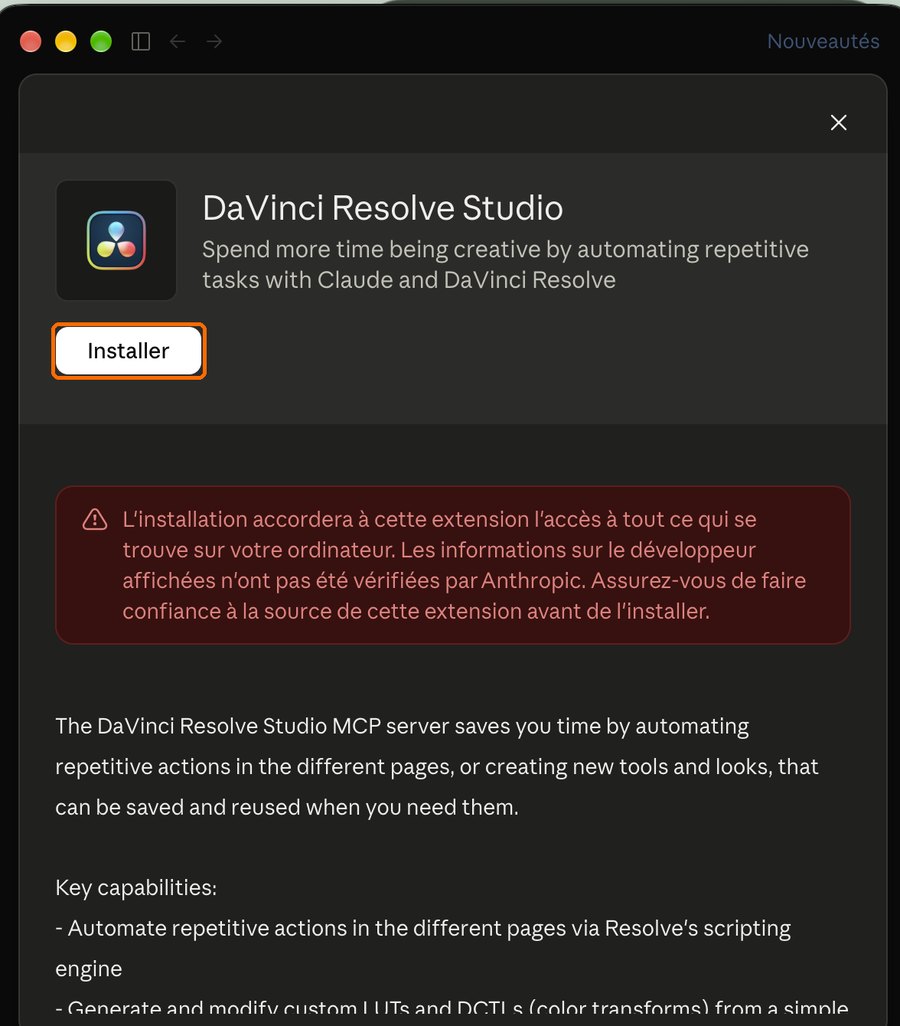
In Claude, the DaVinci Resolve Studio extension page opens: click Install. The red warning is Claude's standard message for any extension that acts on your computer; this one is published by Blackmagic Design and drives Resolve.
Quit Claude completely, then reopen it: Mac, Claude › Quit (⌘ Q); Windows, right-click the Claude icon near the clock, then Quit. To check: in Claude, Settings › Extensions, “DaVinci Resolve Studio” is enabled.
No Setup AI Assistants menu? Your Resolve is too old: DaVinci Resolve › Check for Updates… (21.1 or later).
Step 5
In Claude: Settings › Capabilities. Turn on code execution and file creation: the agent needs it to install its engine.
Step 6
In Claude: Customize › Skills, the + button, Create skill, then Upload a skill. Choose nd-motion-studio.zip in “1 - Skill à importer dans Claude”.
The nd-motion-studio skill shows up in the list: leave it enabled. Already have other DaVinci Resolve skills? Turn them off during the install so Claude uses this one.
Step 7
Open Resolve with any project: it won't be modified. In Claude, start a new conversation and type:
Initialize ND Motion Studio
Write in your own language: Claude answers in the same one. It asks its questions as tick-box choices, recommended answer first. What it does, in about ten minutes:
Documents/nd_motion by default. Your footage doesn't go there.Step 8
It will tell you. Copy the nd_motion_lib_….zip archive from the “2 - Moteur” folder into Documents/nd_motion (create the folder if needed), without unzipping it, then tell Claude: “I have placed the engine archive”.
Step 9
Open the “sound pack” link in your delivery email: it leads to the folder of the 14 sound families (about 8 GB in all). Download the families you want and the index file nd_motion_st_sfx_index.json.
Unzip the archives into one folder, on the drive of your choice, and put the index file in it. Then tell Claude: “Use this sound pack:” followed by the folder's path.
To copy that path: Mac, right-click the folder while holding Option, then Copy “…” as Pathname; Windows, Shift + right-click the folder, then Copy as path.
Redo step 4, then quit and reopen Claude and Resolve. Check in Settings › Extensions that “DaVinci Resolve Studio” is enabled.
A window is open in Resolve (Preferences, a message), a render is running, or external scripting isn't set to Local (step 3). Close the window or wait, then ask Claude again.
Import the .zip file, not the unzipped folder (step 1).
The installed engine doesn't match your licence: reinstall from the folder you received. Link expired? Email us from the address you bought with and we'll send a new one.
You need DaVinci Resolve Studio 21.1 or later: DaVinci Resolve › Check for Updates…
Still stuck? Email contact@nd-motionstudio.cloud from the address you bought with, telling me what you see on screen. If we can't get it working, even after a screen-share call, you're refunded: 30-day guarantee, terms of sale article 7 bis.